Introduction
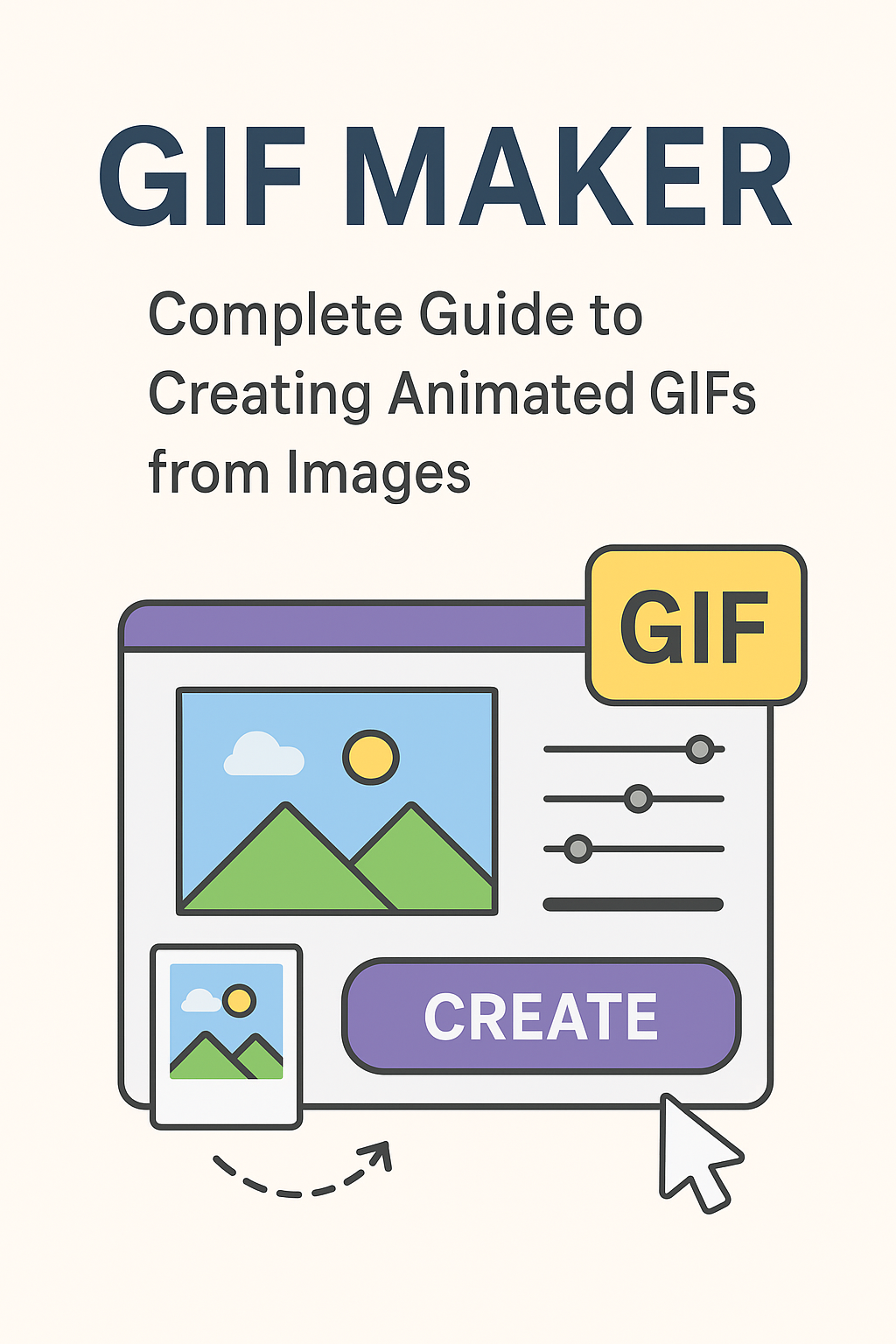
Animated GIFs have become an essential part of digital communication, from social media posts to marketing campaigns. Whether you're creating memes, product demonstrations, or visual tutorials, a reliable GIF maker tool makes the process simple and fun. This comprehensive guide explores how to create animated GIFs online, best practices, and creative use cases.
What is a GIF Maker?
A GIF maker is a tool that converts multiple static images into a single animated GIF file. By combining images in sequence and controlling timing, you create smooth animations that loop continuously. GIFs are universally supported across platforms, making them perfect for sharing visual content without video file complexity.
Why Create Animated GIFs?
- Universal Compatibility: GIFs work on all devices and platforms without special players
- Smaller File Sizes: More compact than videos while maintaining visual impact
- Auto-Play Everywhere: No play button needed - animations start automatically
- Easy Sharing: Share directly on social media, messaging apps, and websites
- No Sound Required: Perfect for silent, visual storytelling
- Looping Animation: Continuous playback captures attention
Creative Use Cases for GIF Maker
Social Media and Marketing
- Product Showcases: Display products from multiple angles or show features in action
- Before/After Transformations: Demonstrate results, makeovers, or improvements
- Step-by-Step Tutorials: Create visual guides for recipes, crafts, or DIY projects
- Promotional Banners: Eye-catching animated ads for websites and emails
- Social Media Stories: Create engaging content for Instagram, Facebook, and Twitter
- Reaction GIFs: Express emotions and responses in conversations
- Brand Animations: Animated logos and brand elements
Business and Professional
- Software Demos: Show UI interactions and feature workflows
- Data Visualization: Animate charts and graphs to show trends
- Email Marketing: Add animated elements to newsletters
- Presentation Enhancements: Create animated slides and transitions
- Training Materials: Visual instructions for employee onboarding
- Progress Indicators: Show project timelines and milestones
Creative and Personal
- Photo Slideshows: Turn vacation photos into animated memories
- Stop Motion Animation: Create frame-by-frame animations
- Memes and Humor: Make funny animated content
- Event Invitations: Animated save-the-dates and announcements
- Art Portfolios: Showcase artwork progression or multiple pieces
- Pet Moments: Capture funny pet sequences
E-commerce and Product
- Product Features: Highlight key features and benefits
- Size Comparisons: Show products at different scales
- Color Variations: Display available colors and styles
- Usage Instructions: Demonstrate how to use products
- Unboxing Experiences: Show packaging and contents
Using Arya Web Studio's Free GIF Maker
Key Features
Arya Web Studio offers a free, browser-based GIF maker with advanced capabilities:
- Multiple Format Support: Works with JPG, PNG, WebP, and HEIC images
- Drag-and-Drop Reordering: Easily arrange frames in your preferred sequence
- Adjustable Frame Delay: Control animation speed from 20ms to 2000ms per frame
- Speed Presets: Quick settings for slow, normal, fast, and very fast animations
- Custom Dimensions: Set specific width and height in pixels
- Quality Control: Optimize file size with quality slider (1-30 levels)
- Loop Options: Choose infinite loop or single playthrough
- Browser-Based Processing: All processing happens locally - no uploads required
- Real-Time Preview: See your GIF before downloading
- No Watermarks: Clean output without branding
- Bulk Actions: Reverse frame order or clear all with one click
How to Create Animated GIF - Step by Step
Step 1: Upload Your Images
Visit the GIF Maker tool and add at least 2 images by:
- Clicking "Add Images" to browse your files
- Dragging and dropping images into the upload area
- Selecting multiple images at once for batch upload
- Mixing different image formats (JPG, PNG, WebP, HEIC)
Step 2: Arrange Your Frames
Organize your animation sequence:
- Drag and drop frames to reorder them
- Use "Reverse Order" to flip the sequence
- Remove individual frames if needed
- Preview frame thumbnails to verify order
Step 3: Configure Settings
Customize your GIF animation:
- Speed Preset: Choose slow (500ms), normal (200ms), fast (100ms), or very fast (50ms)
- Frame Delay: Fine-tune timing with custom delay (20-2000ms)
- Dimensions: Set custom width and height, or leave blank for original size
- Quality: Adjust quality slider (lower = better quality, larger file)
- Loop: Enable infinite loop or single playthrough
Step 4: Create and Download
Generate your animated GIF:
- Click "Create GIF" to start processing
- Watch real-time progress as frames are combined
- Preview the animated result
- Download your GIF file with no watermarks
Real-World Example
Scenario: Creating a Product Feature GIF
Goal: Show a smartwatch's different watch faces
Images:
- watch_face_classic.jpg
- watch_face_digital.jpg
- watch_face_fitness.jpg
- watch_face_minimal.jpg
Settings:
- Frame Delay: 800ms (slower to showcase each face)
- Dimensions: 600x600px (square for social media)
- Quality: 10 (balanced quality and file size)
- Loop: Forever (continuous demonstration)
Result: A 3.2-second looping GIF that smoothly transitions between watch faces, perfect for product pages and social media posts.
Try our free GIF maker to bring your images to life!
Best Practices for Creating GIFs
1. Optimize Frame Count
Use 5-15 frames for most GIFs. Too few frames create choppy animation, while too many increase file size without significant quality improvement.
2. Choose Appropriate Frame Delay
- Fast (50-100ms): Smooth motion, action sequences
- Normal (200-300ms): General animations, slideshows
- Slow (500-1000ms): Product showcases, before/after comparisons
3. Keep File Sizes Manageable
Aim for under 5MB for web use. Our GIF maker helps optimize file size through quality settings and dimension control.
4. Use Consistent Image Dimensions
Start with images of the same size to avoid scaling issues. If mixing sizes, set custom dimensions to ensure consistency.
5. Consider Your Platform
- Social Media: Square (1:1) or vertical (4:5) formats work best
- Email: Keep under 1MB for faster loading
- Websites: Optimize for page load speed
- Messaging Apps: Smaller dimensions (400-600px) load faster
6. Test Your GIF
Preview the animation before finalizing. Check timing, smoothness, and overall visual appeal.
7. Plan Your Sequence
Storyboard your animation before creating it. Know which images go where and in what order.
GIF Optimization Techniques
Reducing File Size
- Decrease Dimensions: Smaller pixel dimensions = smaller file size
- Adjust Quality: Higher quality values (15-30) create smaller files
- Limit Colors: GIFs support 256 colors - simpler images compress better
- Reduce Frames: Fewer frames = smaller file size
- Increase Frame Delay: Longer delays can allow fewer frames for same duration
Improving Quality
- Use High-Quality Source Images: Start with clear, sharp photos
- Maintain Aspect Ratio: Avoid distortion by keeping proportions
- Lower Quality Setting: Values 1-10 preserve more detail
- Smooth Transitions: Use more frames for smoother animation
Creative GIF Techniques
Boomerang Effect
Create a back-and-forth animation by uploading images in sequence, then reversing them. Example: 1, 2, 3, 4, 3, 2, 1.
Stop Motion Animation
Take multiple photos of objects in slightly different positions. When combined, they create the illusion of movement.
Cinemagraph Style
Isolate movement in one area while keeping the rest static. Requires careful image preparation but creates stunning results.
Text Animations
Create images with text in different positions or styles to make animated text effects.
Color Transitions
Show the same image with different color filters or adjustments for a morphing effect.
GIF Maker vs Video
| Feature | Animated GIF | Video (MP4) |
|---|---|---|
| File Size | Smaller for short clips | Larger but more efficient for long content |
| Auto-Play | Yes, everywhere | Platform dependent |
| Sound | No audio support | Full audio support |
| Compatibility | Universal | Requires player |
| Quality | 256 colors max | Millions of colors |
| Best For | Short loops, reactions, demos | Long content, tutorials, presentations |
Common Issues and Solutions
GIF File Too Large
Solution: Reduce dimensions, increase quality value (15-30), or use fewer frames. Try 600px width for social media.
Animation Too Fast or Slow
Solution: Adjust frame delay. Use speed presets as starting points, then fine-tune with custom delay.
Choppy Animation
Solution: Add more frames between key positions or reduce frame delay for smoother playback.
Images Different Sizes
Solution: Set custom dimensions in settings to standardize all frames to the same size.
Poor Image Quality
Solution: Lower the quality setting (1-10) or start with higher resolution source images.
Frequently Asked Questions
Is the GIF maker really free?
Yes! Our GIF maker is completely free with no hidden costs, watermarks, or registration requirements.
How many images do I need to create a GIF?
Minimum 2 images are required. You can add as many images as needed for your animation.
Are my images uploaded to your servers?
No. All processing happens in your browser. Your images never leave your device, ensuring complete privacy.
What's the maximum file size for uploaded images?
While there's no strict limit, we recommend reasonable image sizes for optimal performance. The tool processes everything locally in your browser.
Can I create GIFs on mobile devices?
Yes! Our tool works on any device with a modern web browser, including smartphones and tablets.
What's the difference between quality settings?
Lower values (1-10) preserve more detail but create larger files. Higher values (15-30) compress more, creating smaller files with reduced quality.
Can I edit a GIF after creating it?
You'll need to recreate the GIF with new settings. Save your source images to make adjustments easier.
Why doesn't my GIF loop?
Ensure "Loop forever" is checked in settings before creating your GIF.
Conclusion
Creating animated GIFs is an essential skill for modern digital communication. Whether you're a marketer creating engaging content, a designer showcasing work, or someone wanting to share fun animations, a reliable GIF maker streamlines the creative process.
Use our free online GIF maker when you need to:
- Create animated GIFs without software installation
- Control animation speed with precise frame delay settings
- Optimize file size with quality and dimension controls
- Process images securely in your browser
- Generate GIFs with no watermarks
- Work with multiple image formats (JPG, PNG, WebP, HEIC)
- Create professional animations with drag-and-drop simplicity
The online GIF maker provides the perfect balance of simplicity and control for creating engaging animated content. Start bringing your images to life today!
Related Tools and Resources
- Arya Web Studio GIF Maker - Free online tool
- Image Compressor - Reduce image file sizes
- Image Resizer - Resize images for GIFs
- JPG to PNG - Convert image formats
Loading comments...
No comments yet
Be the first to share your thoughts!