
Introduction
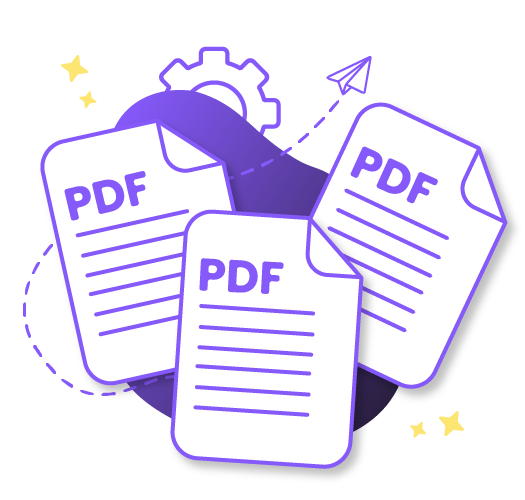
Combining multiple PDF files into a single document is a common need for professionals, students, and businesses. Whether you're compiling reports, organizing invoices, or preparing presentations, a reliable PDF merger tool can save you time and streamline your workflow. This comprehensive guide explores how to merge PDFs online, best practices, and real-world use cases.
What is a PDF Merger?
A PDF merger is a tool that combines multiple PDF documents into a single file while preserving the original formatting, quality, bookmarks, and metadata. Instead of sending multiple attachments or managing separate files, you can create one consolidated document that's easier to share, print, and organize.
Key Benefits of Merging PDFs
- Simplified Sharing: Send one file instead of multiple email attachments
- Better Organization: Keep related documents together in a logical order
- Professional Presentation: Create cohesive reports and proposals
- Easier Printing: Print multiple documents as one continuous file
- Reduced File Management: Fewer files to track and store
- Preserved Quality: Maintain original formatting and resolution
Common Use Cases for PDF Merging
Business and Professional
- Financial Reports: Combine monthly statements, invoices, and receipts into quarterly or annual reports
- Project Proposals: Merge cover letters, project plans, budgets, and supporting documents
- Legal Documents: Consolidate contracts, agreements, and supporting evidence
- HR Documentation: Combine resumes, cover letters, and reference letters
- Meeting Materials: Merge agendas, presentations, and handouts for distribution
Academic and Research
- Research Papers: Combine thesis chapters, appendices, and references
- Student Portfolios: Merge assignments, projects, and certificates
- Course Materials: Consolidate lecture notes, readings, and assignments
- Grant Applications: Combine proposals, budgets, and supporting documents
Personal Use
- Travel Documents: Merge tickets, reservations, and itineraries
- Medical Records: Consolidate test results, prescriptions, and reports
- Tax Documents: Combine W-2s, receipts, and supporting documentation
- Photo Albums: Merge scanned photos and documents into family archives
Using Arya Web Studio's Free PDF Merger
Key Features
Arya Web Studio offers a free, browser-based PDF merger with powerful capabilities:
- Unlimited Merging: Combine multiple PDF files without restrictions
- Drag-and-Drop Reordering: Easily arrange files in your preferred order
- Quality Preservation: Maintains original formatting, resolution, and quality
- Metadata Retention: Preserves bookmarks, links, and document properties
- Batch Processing: Merge multiple sets of PDFs efficiently
- Secure Processing: Files are automatically deleted after merging
- No Registration: Completely free with no sign-up required
- Fast Processing: Real-time progress tracking and quick results
How to Merge PDFs Online - Step by Step
Step 1: Upload Your PDF Files
Visit the PDF Merger tool and upload at least 2 PDF files by:
- Dragging and dropping files into the upload area
- Clicking "Choose Files" to browse your computer
- Selecting multiple files at once for batch merging
Step 2: Arrange File Order
Once uploaded, you can reorder your files:
- Drag and drop files to change their position
- The final merged PDF will follow your specified order
- Preview file names to ensure correct sequence
Step 3: Merge PDFs
Click the "Merge PDFs" button to start the process:
- Watch real-time progress as files are combined
- Processing typically takes seconds to a minute
- All pages, bookmarks, and metadata are preserved
Step 4: Download Your Merged PDF
Once merging is complete:
- Download your combined PDF file instantly
- The merged document includes all pages in order
- Original quality and formatting are maintained
Real-World Example
Scenario: Creating a Quarterly Business Report
Files to Merge:
- Cover_Letter.pdf (1 page)
- Executive_Summary.pdf (3 pages)
- Financial_Statements.pdf (12 pages)
- Sales_Analysis.pdf (8 pages)
- Appendix.pdf (5 pages)
Result: One consolidated Q4_Business_Report.pdf (29 pages total) with all documents in the correct order, ready for distribution to stakeholders.
Try our free PDF merger to combine your documents in seconds!
Best Practices for Merging PDFs
1. Organize Files Before Uploading
Rename files with numbers or prefixes (01_, 02_, etc.) to maintain logical order. This makes it easier to arrange them correctly in the merger tool.
2. Check File Sizes
While our PDF merger handles large files efficiently, consider compressing very large PDFs before merging to reduce the final file size.
3. Verify Page Orientation
Ensure all PDFs have consistent page orientation (portrait or landscape) for a professional-looking merged document.
4. Test with Sample Files
For important documents, test the merging process with sample files first to ensure the output meets your expectations.
5. Preserve Bookmarks
If your PDFs contain bookmarks or table of contents, our tool automatically preserves them in the merged document for easy navigation.
6. Consider Security
If merging sensitive documents, use our secure online tool which automatically deletes files after processing, or consider password-protecting the final merged PDF.
Technical Aspects of PDF Merging
What Happens During Merging?
When you merge PDFs, the tool:
- Extracts pages from each source PDF
- Combines them in the specified order
- Preserves fonts, images, and formatting
- Maintains internal links and bookmarks
- Consolidates metadata and document properties
- Generates a new PDF with all combined content
Quality Preservation
Our merger maintains:
- Image Resolution: Original DPI and quality retained
- Font Embedding: All fonts preserved for consistent display
- Color Profiles: ICC profiles and color spaces maintained
- Vector Graphics: Scalable graphics remain crisp
- Hyperlinks: Internal and external links stay functional
Programmatic PDF Merging (For Developers)
For automated workflows, developers can merge PDFs programmatically. While our online tool is perfect for manual tasks, here's a Python example for automation:
from PyPDF2 import PdfMerger

def merge_pdfs(pdf_list, output_path):
    merger = PdfMerger()

    for pdf in pdf_list:
        merger.append(pdf)

    merger.write(output_path)
    merger.close()

# Usage
files = ['file1.pdf', 'file2.pdf', 'file3.pdf']
merge_pdfs(files, 'merged_output.pdf')
Online Tool vs Desktop Software
| Feature | Online Tool | Desktop Software |
|---|---|---|
| Setup | Instant, no installation | Requires download/install |
| Cost | Free | Often paid |
| Accessibility | Any device with browser | Specific computer only |
| Updates | Always current | Manual updates needed |
| File Limits | Reasonable limits | Usually unlimited |
| Best For | Quick, occasional use | Frequent, large-scale use |
Common Issues and Solutions
Merged PDF is Too Large
Solution: Compress individual PDFs before merging, or use a PDF compressor after merging to reduce file size.
Bookmarks Not Showing
Solution: Ensure source PDFs have properly formatted bookmarks. Our tool preserves existing bookmarks but doesn't create new ones.
Pages in Wrong Order
Solution: Use the drag-and-drop feature to reorder files before clicking "Merge PDFs".
Upload Fails
Solution: Check your internet connection and ensure files aren't corrupted. Try uploading files one at a time if issues persist.
Frequently Asked Questions
Is the PDF merger really free?
Yes! Our PDF merger is completely free with no hidden costs, watermarks, or registration requirements.
How many PDFs can I merge at once?
You can merge multiple PDF files in one operation. While there's no strict limit, we recommend reasonable file sizes for optimal performance.
Will my files be stored on your servers?
No. All files are automatically deleted after processing. We prioritize your privacy and security.
Can I merge password-protected PDFs?
You'll need to remove password protection before merging. Most PDF readers allow you to save an unprotected copy.
Does merging reduce PDF quality?
No. Our merger preserves original quality, formatting, fonts, images, and metadata without any degradation.
Can I merge PDFs on mobile devices?
Yes! Our tool works on any device with a web browser, including smartphones and tablets.
Conclusion
Merging PDF files is an essential skill for modern document management. Whether you're a business professional compiling reports, a student organizing research, or anyone needing to consolidate documents, a reliable PDF merger saves time and improves workflow efficiency.
Use our free online PDF merger when you need to:
- Quickly combine multiple PDFs without software installation
- Maintain original quality and formatting
- Preserve bookmarks, links, and metadata
- Reorder files with drag-and-drop simplicity
- Process files securely with automatic deletion
- Access the tool from any device with a browser
The online PDF merger provides a perfect balance of convenience, security, and functionality for everyday PDF merging needs. Start combining your documents today and experience streamlined document management!
Related Tools and Resources
- Arya Web Studio PDF Merger - Free online tool
- PDF Splitter - Extract pages from PDFs
- PDF Compressor - Reduce file sizes
- PDF to Word - Convert PDFs to editable documents
Loading comments...
No comments yet
Be the first to share your thoughts!