
Introduction
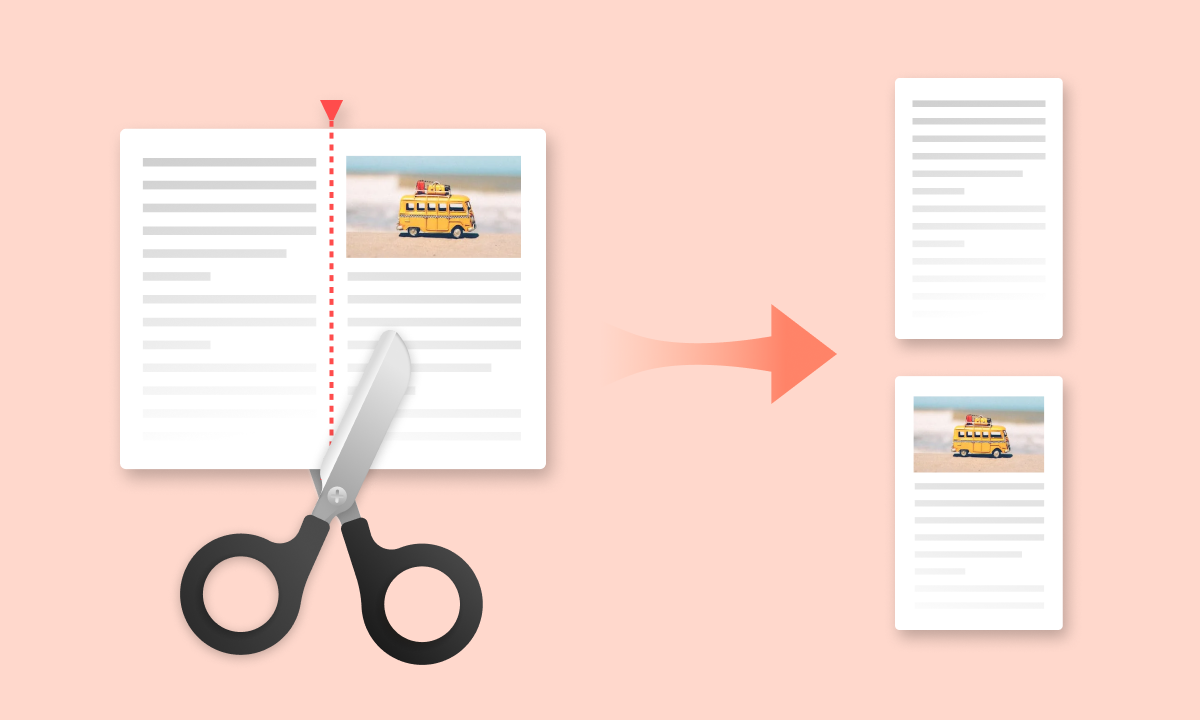
Extracting specific pages from PDF documents is a common need for professionals, students, and businesses. Whether you need to separate chapters, extract invoices, or share specific sections, a reliable PDF splitter tool makes the process simple and efficient. This comprehensive guide explores how to split PDFs online, best practices, and practical use cases.
What is a PDF Splitter?
A PDF splitter is a tool that extracts individual pages or page ranges from multi-page PDF documents, creating separate PDF files for each page or section. This allows you to work with specific portions of large documents without modifying the original file.
Key Benefits of Splitting PDFs
- Selective Sharing: Share only relevant pages instead of entire documents
- Better Organization: Separate large documents into manageable sections
- Reduced File Sizes: Extract only needed pages to create smaller files
- Privacy Protection: Remove sensitive pages before sharing
- Easier Editing: Work with individual pages or sections
- Improved Workflow: Process specific pages independently
Common Use Cases for PDF Splitting
Business and Professional
- Invoice Extraction: Separate individual invoices from monthly statement PDFs
- Report Sections: Extract executive summaries or specific chapters from lengthy reports
- Contract Pages: Isolate signature pages or specific clauses from contracts
- Presentation Slides: Extract individual slides for focused discussions
- Financial Statements: Separate balance sheets, income statements, and cash flow reports
- Meeting Minutes: Extract action items or specific topics from meeting records
Academic and Research
- Thesis Chapters: Separate dissertation chapters for individual review
- Research Papers: Extract methodology or results sections for analysis
- Textbook Pages: Create study materials from specific textbook pages
- Assignment Submissions: Separate multi-part assignments into individual files
- Reference Materials: Extract relevant pages from academic journals
Legal and Compliance
- Case Documents: Extract exhibits or specific evidence from case files
- Regulatory Filings: Separate schedules and attachments from main documents
- Discovery Materials: Organize large document productions by relevance
- Contract Amendments: Extract specific amendments from master agreements
Personal Use
- Travel Documents: Separate tickets, hotel confirmations, and itineraries
- Medical Records: Extract specific test results or prescriptions
- Tax Documents: Separate W-2s, 1099s, and receipts from tax packages
- Photo Scans: Extract individual photos from multi-page scanned albums
- Manuals: Extract specific instructions or troubleshooting sections
Using Arya Web Studio's Free PDF Splitter
Key Features
Arya Web Studio offers a free, browser-based PDF splitter with powerful capabilities:
- Individual Page Extraction: Split PDFs into separate single-page files
- Batch Processing: Split multiple PDF files simultaneously
- Quality Preservation: Maintains original formatting, resolution, and quality
- Metadata Retention: Preserves document properties and information
- ZIP Download: Get all split pages packaged in convenient ZIP files
- Secure Processing: Files are automatically deleted after splitting
- No Registration: Completely free with no sign-up required
- Fast Processing: Real-time progress tracking and quick results
How to Split PDFs Online - Step by Step
Step 1: Upload Your PDF Files
Visit the PDF Splitter tool and upload your PDF documents by:
- Dragging and dropping files into the upload area
- Clicking "Choose Files" to browse your computer
- Selecting multiple files for batch splitting
Step 2: Start Splitting
Click the "Split PDFs" button to begin extraction:
- Watch real-time progress as pages are extracted
- Each page becomes a separate PDF file
- Processing typically takes seconds per document
Step 3: Download Split Pages
Once splitting is complete:
- Download individual page PDFs as needed
- Use "Download All as ZIP" for convenient batch download
- Each page maintains original quality and formatting
Real-World Example
Scenario: Extracting Monthly Invoices
Original File: Annual_Invoices_2024.pdf (120 pages, 10 invoices per month)
Process:
- Upload the 120-page PDF to the splitter
- Click "Split PDFs" to extract all pages
- Download the ZIP file containing 120 individual PDFs
- Organize extracted pages by month or client
Result: 120 separate PDF files, each containing one invoice page, making it easy to file, share, or process individual invoices.
Try our free PDF splitter to extract pages in seconds!
Best Practices for Splitting PDFs
1. Plan Your Organization
Before splitting, decide how you'll organize the extracted pages. Consider using consistent naming conventions or folder structures.
2. Preview Before Splitting
Open the PDF and note which pages you need. This helps you identify the correct files after splitting.
3. Use Batch Processing
If you have multiple PDFs to split, upload them all at once using our batch processing feature to save time.
4. Rename Extracted Files
After downloading, rename files with descriptive names (e.g., "Invoice_January_2024.pdf" instead of "page_1.pdf").
5. Keep Original Files
Always maintain a backup of the original PDF before splitting, in case you need to reference the complete document later.
6. Consider File Size
Splitting large PDFs into individual pages can create many small files. Consider whether you need all pages or just specific sections.
Advanced PDF Splitting Techniques
Splitting by Page Ranges
For documents where you need specific sections rather than individual pages:
- Split the entire PDF first
- Use a PDF merger to recombine desired page ranges
- This gives you precise control over extracted sections
Batch Processing Workflow
For processing multiple similar documents:
- Upload all PDFs to the splitter at once
- Download the ZIP file containing all split pages
- Use file management tools to sort and organize by criteria
- Automate renaming using batch rename utilities
Quality Control
After splitting important documents:
- Spot-check several extracted pages for quality
- Verify that text remains searchable (if original was searchable)
- Confirm that images maintain resolution
- Check that hyperlinks still function
Programmatic PDF Splitting (For Developers)
For automated workflows, developers can split PDFs programmatically. While our online tool is perfect for manual tasks, here's a Python example for automation:
from PyPDF2 import PdfReader, PdfWriter

def split_pdf(input_path, output_folder):
    reader = PdfReader(input_path)

    for page_num in range(len(reader.pages)):
        writer = PdfWriter()
        writer.add_page(reader.pages[page_num])

        output_path = f"{output_folder}/page_{page_num + 1}.pdf"
        with open(output_path, 'wb') as output_file:
            writer.write(output_file)

# Usage
split_pdf('document.pdf', 'output_pages')
Online Tool vs Desktop Software
| Feature | Online Tool | Desktop Software |
|---|---|---|
| Setup | Instant, no installation | Requires download/install |
| Cost | Free | Often paid |
| Accessibility | Any device with browser | Specific computer only |
| Batch Processing | Yes, multiple files | Usually yes |
| Page Selection | All pages extracted | Custom page ranges |
| Best For | Quick, occasional use | Frequent, complex splitting |
Common Issues and Solutions
Too Many Files Created
Solution: If you only need specific pages, consider using page range selection or manually selecting needed pages after splitting.
File Names Are Confusing
Solution: After downloading, use batch rename tools or manually rename files with descriptive names.
ZIP File Too Large
Solution: Download individual pages instead of the ZIP file, or split the process into multiple batches.
Quality Appears Reduced
Solution: Our tool preserves original quality. If quality seems reduced, check the original PDF quality or try re-uploading.
Upload Fails
Solution: Check your internet connection, ensure the PDF isn't corrupted, and verify file size is reasonable.
Frequently Asked Questions
Is the PDF splitter really free?
Yes! Our PDF splitter is completely free with no hidden costs, watermarks, or registration requirements.
Can I split password-protected PDFs?
You'll need to remove password protection before splitting. Most PDF readers allow you to save an unprotected copy.
Will splitting reduce PDF quality?
No. Our splitter preserves original quality, formatting, fonts, images, and metadata without any degradation.
Can I select specific pages to extract?
Currently, our tool extracts all pages as individual files. You can then select the specific pages you need from the results.
How are the split files named?
Files are typically named sequentially (page_1.pdf, page_2.pdf, etc.). You can rename them after downloading.
Can I split PDFs on mobile devices?
Yes! Our tool works on any device with a web browser, including smartphones and tablets.
What happens to my files after splitting?
All files are automatically deleted from our servers after processing. We prioritize your privacy and security.
Conclusion
Splitting PDF files is an essential tool for modern document management. Whether you're a business professional organizing invoices, a student extracting research materials, or anyone needing to work with specific PDF pages, a reliable PDF splitter streamlines your workflow and improves productivity.
Use our free online PDF splitter when you need to:
- Quickly extract pages without software installation
- Process multiple PDFs with batch splitting
- Maintain original quality and formatting
- Download results as convenient ZIP files
- Work securely with automatic file deletion
- Access the tool from any device with a browser
The online PDF splitter provides the perfect balance of convenience, security, and functionality for everyday PDF splitting needs. Start extracting your pages today and experience streamlined document management!
Related Tools and Resources
- Arya Web Studio PDF Splitter - Free online tool
- PDF Merger - Combine multiple PDFs
- PDF Compressor - Reduce file sizes
- PDF to Word - Convert PDFs to editable documents
Loading comments...
No comments yet
Be the first to share your thoughts!