
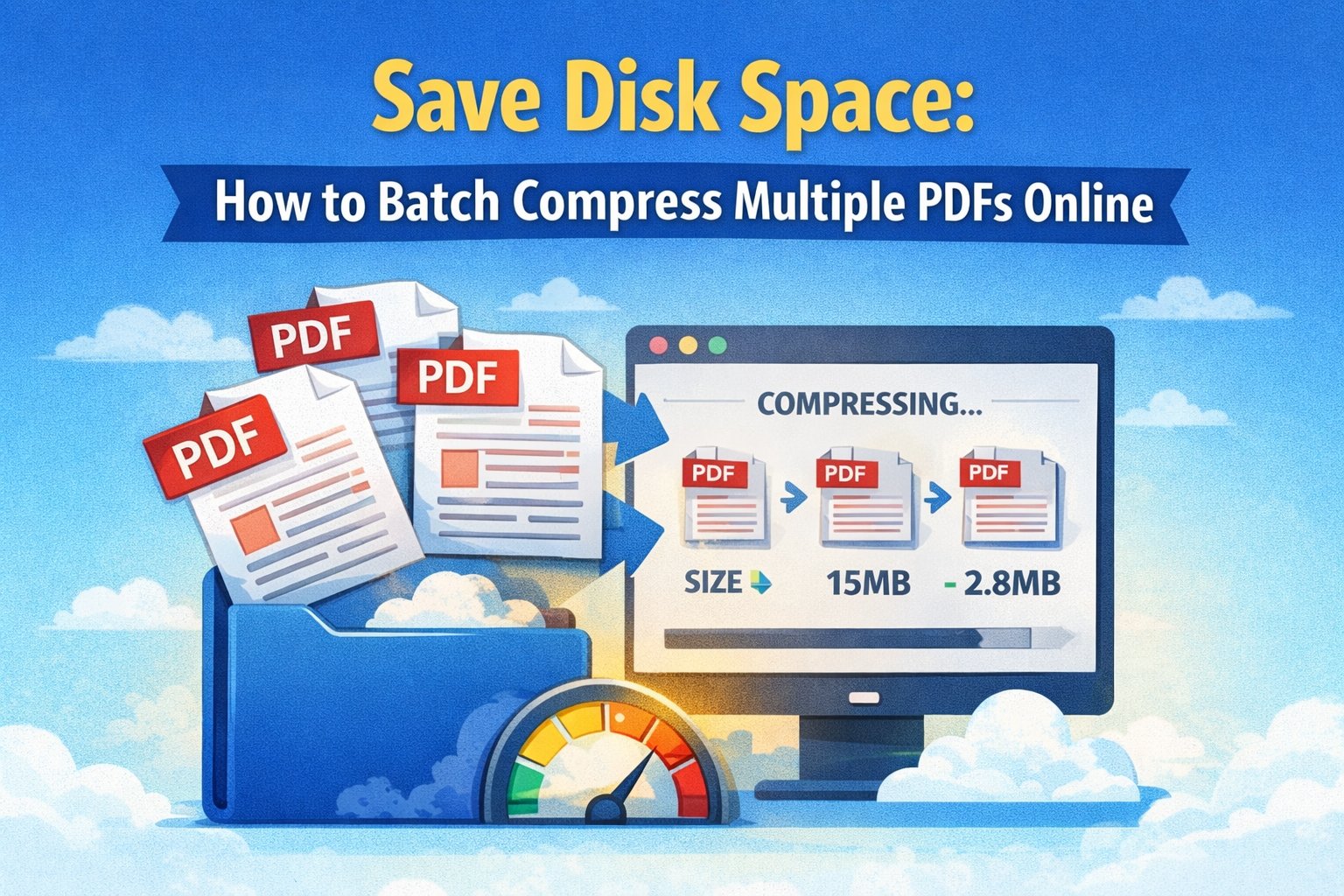
Why PDF File Size Matters for Storage Management
PDF files are essential for business, education, and personal document management, but they can quickly consume massive amounts of storage space. Whether you're dealing with scanned documents, image-heavy reports, or large presentations converted to PDF, file sizes can balloon to hundreds of megabytes or even gigabytes. This comprehensive guide will teach you how to efficiently compress multiple PDF files at once, potentially saving up to 70% of your storage space.
Large PDF files don't just eat up disk space—they slow down file transfers, make email sharing impossible, and can overwhelm cloud storage limits. Learning to batch compress PDFs is a crucial skill for anyone managing digital documents in today's data-heavy world.
🚀 Ready to compress your PDFs now?
Use our free batch PDF compressor - process multiple files at once!
Compress PDFs Free →The Storage Space Challenge
Common PDF Size Problems
- Scanned Documents: Can reach 50-100MB per file due to high-resolution images
- Presentation PDFs: Often contain uncompressed images and graphics
- Report Collections: Multiple large files consuming gigabytes of space
- Archive Documents: Years of accumulated files taking up valuable storage
- Email Attachments: Files too large to send or receive via email
Storage Impact Statistics
- Average business PDF: 5-15MB per document
- Scanned documents: 20-100MB per file
- Typical compression savings: 30-70% size reduction
- Storage cost savings: Up to $50-200 per year on cloud storage
- Transfer time improvement: 3-5x faster uploads and downloads
Understanding PDF Compression
How PDF Compression Works
PDF compression reduces file size through several techniques:
- Image Optimization: Reduces image quality and resolution while maintaining readability
- Stream Compression: Compresses text and vector graphics using algorithms
- Object Removal: Eliminates unused objects and metadata
- Font Optimization: Optimizes embedded fonts and removes duplicates
- Structure Cleanup: Removes redundant data and optimizes file structure
Compression Quality Levels
Understanding quality levels helps you choose the right balance:
- Low Compression (95% quality): Minimal size reduction, maximum quality preservation
- Medium Compression (85% quality): Balanced approach, 30-50% size reduction
- High Compression (75% quality): Maximum size reduction, 50-70% smaller files
Step-by-Step Batch Compression Guide
Method 1: Online Batch PDF Compressor
The most efficient way to compress multiple PDFs is using a dedicated online tool. Our free PDF compressor supports batch processing with three quality levels and secure file handling.
- Upload Multiple Files: Drag and drop or select multiple PDF files (up to 50MB each)
- Choose Quality Level: Select Low, Medium (recommended), or High compression
- Start Batch Processing: Click "Compress PDFs" to process all files simultaneously
- Monitor Progress: Watch real-time compression progress and ratios
- Download Results: Get individual files or download all as a ZIP archive
💡 Pro Tip: Our PDF compressor shows exact compression ratios for each file, helping you understand which documents benefit most from compression.
Method 2: Desktop Software Solutions
For regular batch processing needs:
- Adobe Acrobat Pro: Professional batch processing with advanced options
- PDFtk Server: Command-line tool for automated compression
- Foxit PhantomPDF: Business-focused batch compression features
- PDF24 Creator: Free desktop tool with batch capabilities
Method 3: Automated Folder Processing
For large-scale operations:
- Set up folder monitoring for automatic compression
- Use scripting to process files as they're added
- Implement compression policies for document management systems
- Create workflows for regular archive maintenance
Quality vs. Size Optimization Strategies
Document Type Considerations
Text-Heavy Documents
- Use medium to high compression safely
- Text clarity remains excellent even at 75% quality
- Focus on removing unused fonts and objects
- Typical savings: 20-40% size reduction
Image-Rich Documents
- Start with medium compression to test quality
- High compression works well for photos and graphics
- Consider image resolution requirements
- Potential savings: 50-70% size reduction
Scanned Documents
- Benefit most from compression due to large image files
- High compression often acceptable for archive purposes
- Consider OCR text layer preservation
- Massive savings possible: 60-80% size reduction
Quality Testing Workflow
- Test Sample: Compress a few representative files first
- Review Quality: Check text readability and image clarity
- Measure Savings: Calculate storage space recovered
- Adjust Settings: Fine-tune compression level if needed
- Batch Process: Apply settings to entire document collection
Advanced Batch Processing Techniques
Organizing Files for Compression
Efficient batch processing starts with good organization:
- Group by Type: Separate text documents, scanned files, and image-heavy PDFs
- Size Sorting: Process largest files first for maximum impact
- Priority Folders: Compress frequently accessed files with lower compression
- Archive Preparation: Use higher compression for long-term storage files
Compression Scheduling
- Process files during off-peak hours to avoid system slowdown
- Set up regular compression schedules for new documents
- Implement automatic compression for specific folders
- Create backup copies before batch compression operations
Quality Control Measures
- Always keep original files until compression quality is verified
- Spot-check random files from large batches
- Test compressed files in target applications
- Document compression settings used for future reference
Storage Optimization Strategies
Calculating Storage Savings
Understanding your potential savings helps prioritize compression efforts:
Storage Savings Calculator
- Current Storage: 10GB of PDF files
- Average Compression: 50% size reduction
- Space Saved: 5GB recovered
- Cost Savings: $60/year (cloud storage)
Long-Term Storage Planning
- Archive Policies: Implement compression standards for document retention
- Access Frequency: Higher compression for rarely accessed files
- Backup Optimization: Compressed files reduce backup time and costs
- Migration Planning: Smaller files are easier to migrate between systems
Cloud Storage Optimization
- Reduce monthly storage costs by 30-70%
- Faster sync times for cloud-based document systems
- Improved collaboration with smaller file transfers
- Better mobile access with reduced data usage
Security and Privacy Considerations
Safe Compression Practices
- Local Processing: Use tools that process files locally when possible
- Secure Deletion: Ensure temporary files are securely deleted
- Backup Strategy: Always maintain original files until compression is verified
- Access Controls: Maintain file permissions and security settings
Online Tool Security
When using online compression tools:
- Choose services with automatic file deletion policies
- Verify SSL encryption for file uploads
- Read privacy policies regarding file handling
- Avoid uploading sensitive documents to unknown services
- Use reputable tools with transparent security practices
Compliance Considerations
- Verify that compression doesn't affect document authenticity
- Maintain audit trails for compressed documents
- Test digital signatures and form fields after compression
- Ensure compressed files meet industry standards
Troubleshooting Common Issues
Compression Problems
Files Won't Compress
- Already Compressed: Some PDFs are already optimized
- Password Protected: Remove passwords before compression
- Corrupted Files: Repair or recreate damaged PDFs
- Unsupported Features: Some advanced PDF features may prevent compression
Quality Issues
- Blurry Images: Reduce compression level or increase DPI settings
- Unreadable Text: Use lower compression for text-heavy documents
- Missing Elements: Check for form fields or annotations after compression
- Color Changes: Verify color profile preservation in compressed files
Performance Optimization
- Process files in smaller batches to avoid memory issues
- Close other applications during large batch operations
- Use SSD storage for faster processing
- Monitor system resources during compression
Measuring Success and ROI
Key Metrics to Track
- Storage Reduction: Total gigabytes saved
- Cost Savings: Reduced cloud storage and backup costs
- Transfer Speed: Improved upload/download times
- User Productivity: Faster file access and sharing
- System Performance: Reduced storage I/O load
ROI Calculation
Calculate the return on investment for PDF compression:
- Time saved on file transfers and backups
- Reduced cloud storage subscription costs
- Improved system performance and user productivity
- Decreased bandwidth usage for remote workers
Best Practices for Different Use Cases
Small Business Document Management
- Implement regular compression schedules for invoice and contract archives
- Use medium compression for active documents
- High compression for long-term storage and backups
- Train staff on compression workflows and quality standards
Educational Institutions
- Compress course materials and research documents
- Optimize student submission storage
- Reduce bandwidth usage for online learning platforms
- Implement automated compression for digital libraries
Personal Document Organization
- Compress photo albums and scanned family documents
- Optimize tax documents and financial records
- Reduce email attachment sizes for easier sharing
- Create compressed archives for long-term storage
Future-Proofing Your Document Strategy
Emerging Compression Technologies
- AI-Powered Compression: Smart algorithms that optimize based on content type
- Lossless Compression: Advanced techniques for zero quality loss
- Real-Time Processing: Automatic compression as files are created
- Cloud Integration: Seamless compression within cloud storage platforms
Planning for Growth
- Establish compression policies before document volumes become unmanageable
- Invest in tools that can scale with your organization
- Train team members on efficient document management practices
- Regular audits of storage usage and compression effectiveness
Tools and Resources
Free Online Compressors
- Arya Web Studio PDF Compressor: Batch processing with three quality levels, secure processing, real compression tracking, and automatic file deletion
- SmallPDF: Popular online tool with batch capabilities
- ILovePDF: Comprehensive PDF toolkit with compression
- PDF24: Free online and desktop compression tools
Desktop Applications
- Adobe Acrobat Pro: Professional-grade batch processing
- Foxit PhantomPDF: Business-focused PDF management
- PDFCreator: Free desktop solution with batch features
- Nitro Pro: Enterprise PDF management platform
Command-Line Tools
- Ghostscript: Powerful PDF processing engine
- PDFtk: PDF toolkit for automation
- QPDF: Structural PDF manipulation
- MuPDF: Lightweight PDF processing library
Conclusion
Batch PDF compression is a powerful strategy for managing storage space, reducing costs, and improving document workflow efficiency. By understanding compression techniques, quality levels, and batch processing methods, you can recover significant storage space while maintaining document usability.
The key to successful PDF compression lies in choosing the right quality level for your specific use case, implementing secure processing practices, and establishing regular compression workflows. Whether you're managing personal documents or enterprise-level archives, the techniques outlined in this guide will help you optimize your PDF storage strategy.
Start with a small batch of representative files to test compression settings, then scale up to process your entire document collection. With proper planning and the right tools, you can achieve substantial storage savings while maintaining the quality and accessibility of your important documents.
Start Compressing Your PDFs Today!
Ready to reclaim your storage space? Try our free PDF compressor tool and see how much space you can save with intelligent batch processing.
Features: Batch processing • Three quality levels • Real compression tracking • Secure processing • Automatic file deletion • Up to 70% size reduction

Loading comments...
No comments yet
Be the first to share your thoughts!