

Introduction
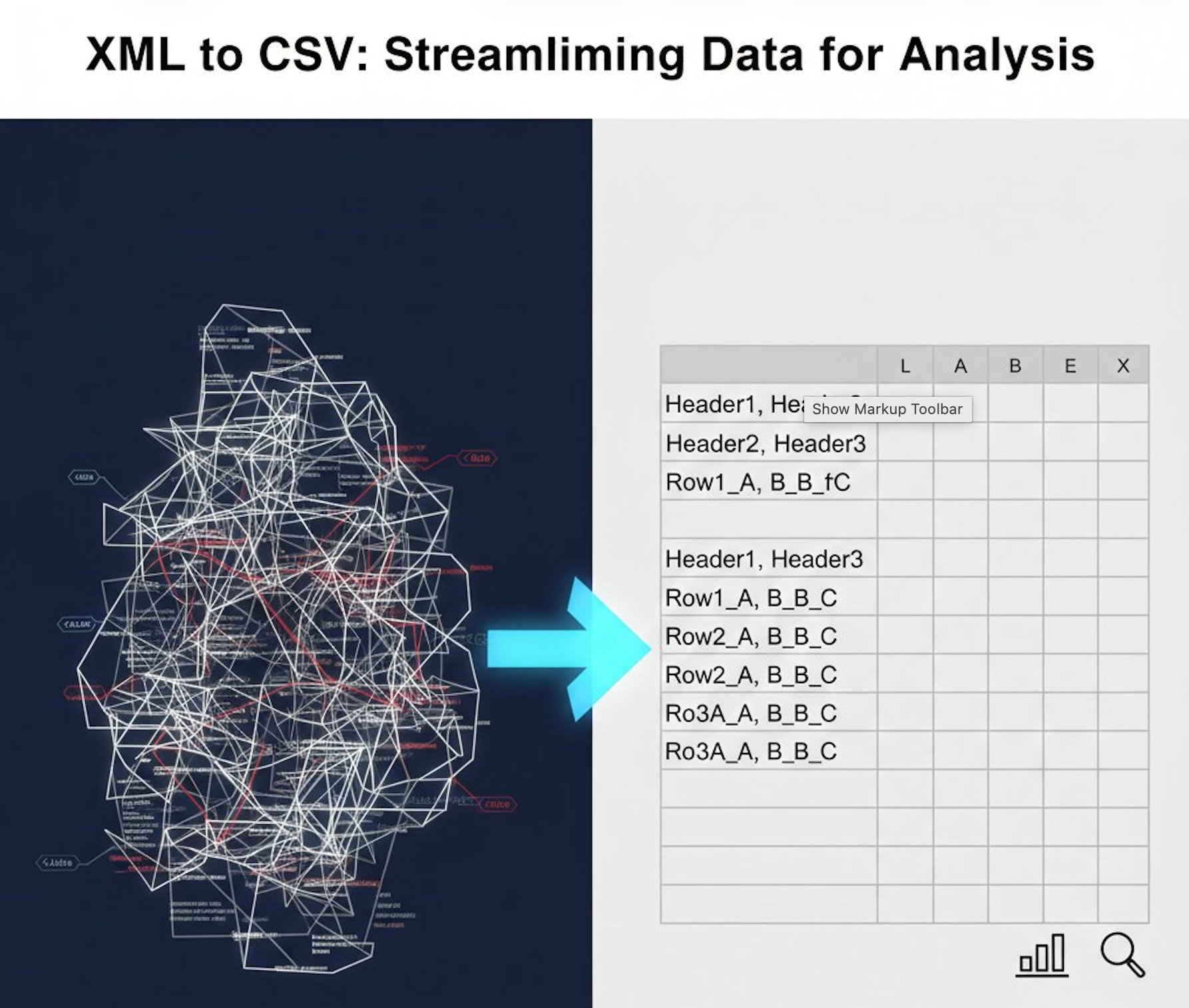
Converting XML data to Excel spreadsheets is a common requirement for data analysts, developers, and business professionals. While XML is excellent for data storage and transfer, Excel provides powerful tools for data analysis, visualization, and reporting. This comprehensive guide explores XML to Excel conversion, including both online tools and programmatic methods.
Understanding XML and Excel Formats
What is XML?
XML (eXtensible Markup Language) is a markup language designed for storing and transporting structured data. It's widely used in enterprise systems, web services, and data exchange between applications.
Example XML Data:
<?xml version="1.0" encoding="UTF-8"?>
<employees>
  <employee>
    <id>101</id>
    <name>John Smith</name>
    <department>Sales</department>
    <salary>75000</salary>
  </employee>
  <employee>
    <id>102</id>
    <name>Jane Doe</name>
    <department>Marketing</department>
    <salary>82000</salary>
  </employee>
</employees>
Why Convert XML to Excel?
Excel spreadsheets offer several advantages for working with data:
- Easy Data Analysis: Use formulas, pivot tables, and charts to analyze data
- Visual Presentation: Create professional reports and dashboards
- Data Manipulation: Sort, filter, and edit data with familiar tools
- Collaboration: Share data with non-technical team members
- Integration: Import data into business intelligence tools
Common Use Cases for XML to Excel Conversion
- API Data Analysis: Convert XML API responses into Excel for reporting
- Database Exports: Transform XML database exports into spreadsheet format
- Financial Reports: Convert XML financial data for accounting analysis
- Inventory Management: Transform XML inventory data into Excel for tracking
- Customer Data: Convert CRM XML exports for sales analysis
- Configuration Files: View and edit XML configuration data in Excel
- Legacy System Integration: Extract data from XML-based legacy systems
Using Arya Web Studio's Free XML to Excel Converter
Key Features
Arya Web Studio offers a free, browser-based XML to Excel converter with powerful capabilities:
- Batch Conversion: Convert multiple XML files to Excel simultaneously
- Large File Support: Handle XML files up to 50MB per file
- Drag-and-Drop Interface: Simple file upload with instant preview
- Structure Preservation: Maintains XML hierarchy and nested data
- Multiple Formats: Export to XLSX (Excel 2007+) or XLS (Excel 97-2003)
- Secure Processing: Files are processed securely and automatically deleted
- No Registration: Completely free with no sign-up required
- ZIP Download: Download all converted files in one archive
How to Convert XML to Excel Online
Step 1: Upload Your XML Files
Visit the XML to Excel Converter and upload your files by:
- Dragging and dropping XML files into the upload area
- Clicking "Choose Files" to browse and select files
- Uploading multiple files for batch conversion
Step 2: Configure Conversion Settings
Select your preferred options:
- Choose output format (XLSX or XLS)
- Configure how nested XML elements should be handled
- Set column headers and data formatting preferences
Step 3: Convert and Download
Click "Convert to Excel" and the tool will:
- Parse your XML structure and extract data
- Transform XML elements into Excel rows and columns
- Generate properly formatted Excel spreadsheets
- Provide download links for individual files or ZIP archive
Conversion Example
Input XML:
<products>
  <product>
    <sku>A001</sku>
    <name>Laptop</name>
    <price>999.99</price>
    <stock>45</stock>
  </product>
  <product>
    <sku>A002</sku>
    <name>Mouse</name>
    <price>29.99</price>
    <stock>150</stock>
  </product>
</products>
Output Excel Spreadsheet:
| SKU | Name | Price | Stock |
|---|---|---|---|
| A001 | Laptop | 999.99 | 45 |
| A002 | Mouse | 29.99 | 150 |
Try our free XML to Excel converter to transform your data in seconds!
Programmatic XML to Excel Conversion
For automated workflows or custom requirements, programmatic conversion provides more control. While our online XML to Excel converter is perfect for quick conversions, developers may need programmatic solutions for integration.
Python Example with openpyxl
Convert XML to Excel using Python:
import xml.etree.ElementTree as ET
from openpyxl import Workbook

def xml_to_excel(xml_file, excel_file):
    # Parse XML
    tree = ET.parse(xml_file)
    root = tree.getroot()

    # Create Excel workbook
    wb = Workbook()
    ws = wb.active

    # Get column headers from first element
    first_item = root[0]
    headers = [child.tag for child in first_item]
    ws.append(headers)

    # Add data rows
    for item in root:
        row = [child.text for child in item]
        ws.append(row)

    # Save Excel file
    wb.save(excel_file)

# Usage
xml_to_excel('data.xml', 'output.xlsx')
JavaScript/Node.js Example
Using xml2js and xlsx libraries:
const fs = require('fs');
const xml2js = require('xml2js');
const XLSX = require('xlsx');

async function xmlToExcel(xmlFile, excelFile) {
  // Read and parse XML
  const xmlData = fs.readFileSync(xmlFile, 'utf8');
  const parser = new xml2js.Parser();
  const result = await parser.parseStringPromise(xmlData);

  // Convert to worksheet
  const ws = XLSX.utils.json_to_sheet(result.root.item);
  const wb = XLSX.utils.book_new();
  XLSX.utils.book_append_sheet(wb, ws, 'Data');

  // Write Excel file
  XLSX.writeFile(wb, excelFile);
}

// Usage
xmlToExcel('data.xml', 'output.xlsx');
Best Practices for XML to Excel Conversion
1. Handle Nested XML Structures
XML often contains nested elements. Decide whether to flatten nested data into columns or create separate sheets for hierarchical data. Our XML to Excel converter automatically handles common nesting patterns.
2. Preserve Data Types
Ensure numbers remain as numbers, dates as dates, and text as text in Excel. This prevents issues with formulas and sorting.
3. Handle Large XML Files
For XML files larger than 50MB, consider splitting them into smaller chunks or using streaming parsers to avoid memory issues.
4. Clean Column Names
Convert XML tag names into readable Excel column headers. Replace underscores with spaces and use proper capitalization.
5. Handle Special Characters
Ensure special characters in XML data are properly preserved in Excel cells, especially for international characters and symbols.
Common Challenges and Solutions
Complex XML Hierarchies
Challenge: XML with deeply nested structures doesn't map directly to flat Excel tables.
Solution: Use our online converter which intelligently flattens nested data, or create multiple Excel sheets for different hierarchy levels.
Mixed Content Types
Challenge: XML elements containing both text and child elements.
Solution: Separate text content and child elements into different columns or use concatenation to combine related data.
XML Attributes
Challenge: XML attributes need to be included in Excel output.
Solution: Convert attributes to separate columns with clear naming conventions (e.g., "element_attribute").
Large Datasets
Challenge: Excel has row limits (1,048,576 rows in modern versions).
Solution: Split large XML files into multiple Excel files or use Excel's data model features for larger datasets.
Working with Converted Excel Files
Data Analysis Features
Once your XML data is in Excel, you can leverage powerful features:
- Pivot Tables: Summarize and analyze large datasets
- Formulas: Perform calculations and data transformations
- Charts: Create visual representations of your data
- Conditional Formatting: Highlight important data patterns
- Data Validation: Ensure data quality and consistency
- Filters and Sorting: Quickly find and organize information
Sharing and Collaboration
Excel files are universally accessible and can be:
- Shared via email or cloud storage
- Opened in Microsoft Excel, Google Sheets, or LibreOffice
- Imported into business intelligence tools
- Converted to PDF for distribution
Online Tool vs Programmatic Approach
| Feature | Online Tool | Programmatic |
|---|---|---|
| Setup Time | Instant | Requires coding |
| Ease of Use | Very easy | Requires knowledge |
| File Size Limit | Up to 50MB | Unlimited |
| Customization | Standard options | Fully customizable |
| Batch Processing | Yes | Yes |
| Automation | Manual | Fully automated |
| Best For | Quick conversions | Production systems |
Tips for Successful XML to Excel Conversion
- Validate XML First: Ensure your XML is well-formed before conversion
- Preview Data: Check a sample conversion before processing large files
- Use Consistent Structure: XML with consistent element structure converts more cleanly
- Consider Data Volume: Be aware of Excel's row and column limits
- Backup Original Files: Keep original XML files before conversion
- Test Formulas: Verify that numeric data is properly formatted for calculations
- Document Transformations: Keep notes on how nested data was flattened
Conclusion
Converting XML to Excel is essential for making structured data accessible and analyzable. Whether you're working with API responses, database exports, or configuration files, transforming XML into Excel spreadsheets enables powerful data analysis and reporting.
Use our free online XML to Excel converter when you need:
- Quick, one-time conversions without coding
- Batch processing of multiple XML files
- Secure, browser-based conversion
- No software installation required
- Support for files up to 50MB
Use programmatic conversion when you need:
- Automated, scheduled conversions
- Custom data transformation logic
- Integration with existing applications
- Processing of very large XML files
- Advanced error handling and validation
Both approaches have their advantages. The online tool provides instant results for everyday tasks, while programmatic solutions offer the flexibility needed for enterprise applications and automated workflows.
Additional Resources
Frequently Asked Questions
Can I convert XML to Excel without software?
Yes! Use our free online XML to Excel converter directly in your browser without installing any software.
What's the maximum XML file size I can convert?
Our online tool supports XML files up to 50MB per file. For larger files, consider splitting them or using programmatic solutions.
Will nested XML elements be preserved?
Yes, our converter intelligently handles nested XML structures by flattening them into Excel columns or creating separate sheets as appropriate.
Can I convert multiple XML files at once?
Absolutely! Our tool supports batch conversion, allowing you to upload and convert multiple XML files simultaneously.
Is my data secure during conversion?
Yes, all files are processed securely in your browser or on secure servers and are automatically deleted after conversion.


Loading comments...
No comments yet
Be the first to share your thoughts!